> ## Documentation Index
> Fetch the complete documentation index at: https://differentai-cleanup-ai-gateway-models-replacement.mintlify.site/llms.txt
> Use this file to discover all available pages before exploring further.
# Get started with OpenWork Cloud
> Connect the desktop app to your organization for Collections, managed connections, models, policies, and hosted workspaces
OpenWork Cloud is optional. The local desktop app stays free, requires no Cloud sign-in, and supports your own providers, skills, plugins, and custom MCP servers. Use Cloud when an organization needs to assign and manage those resources for a team.
OpenWork Cloud is available at [app.openworklabs.com](https://app.openworklabs.com/). It is for teams that want shared identity, Collections, managed connections and models, desktop policies, or hosted workspaces.
First, create or join an organization and connect the desktop app to it.
 1. Open [app.openworklabs.com](https://app.openworklabs.com/) in your browser.
2. Click `Create organization`.
3. Enter your org name.
4. Finish checkout if OpenWork Cloud asks for billing.
5. Continue to the desktop sign-in steps below.
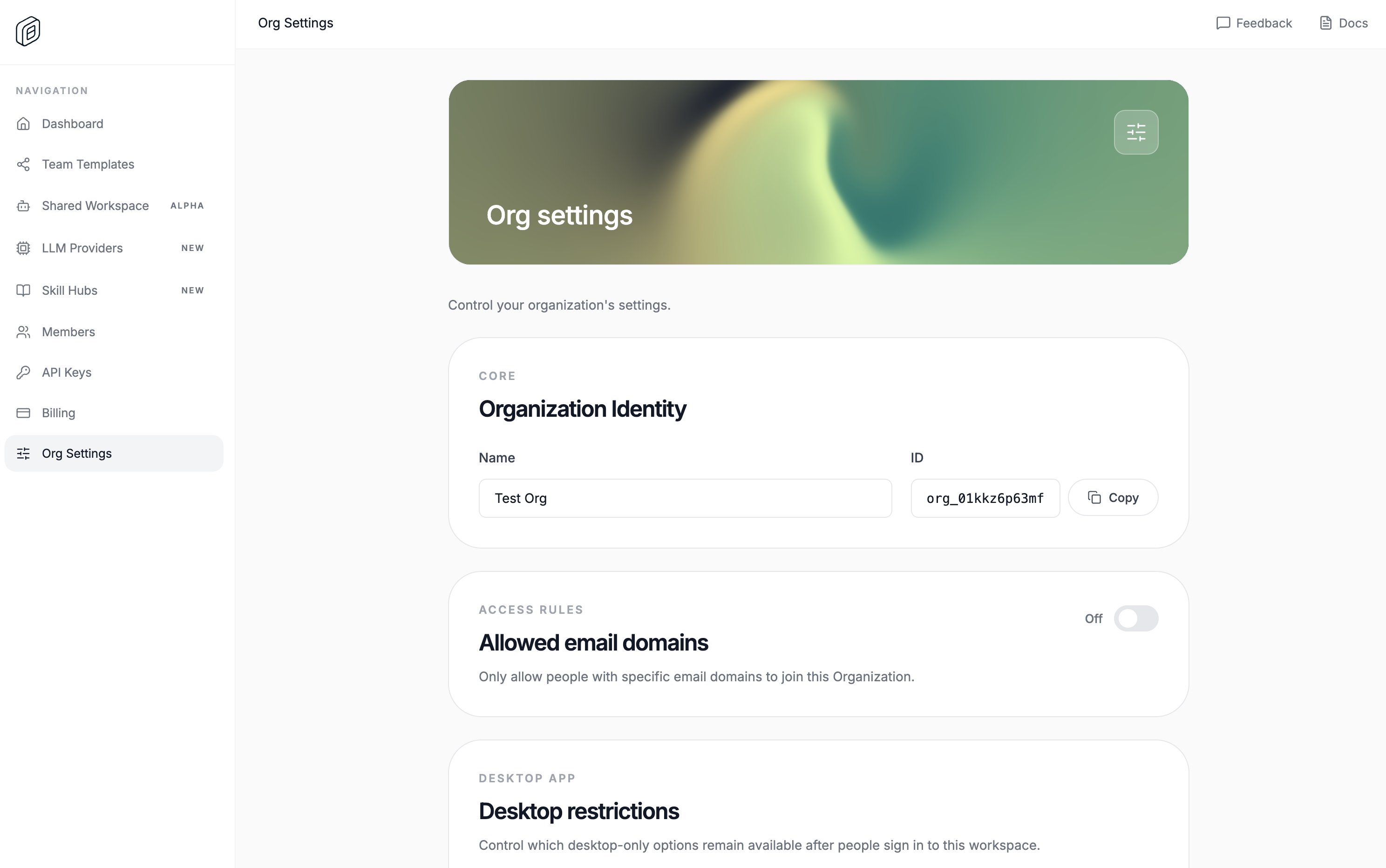
Once you're there, you can configure the settings for the organization.
## Configure org settings
Only the organization owner can change these settings.
1. Open the `dashboard/org_settings` [page](https://app.openworklabs.com/dashboard/org-settings) in the cloud app.
2. Set the name for your organization.
3. Optional: enable `Restrict allowed email domains` and add the approved domains.
4. Optional: change any `Desktop restrictions` that should apply after people sign in from the desktop app.
These settings apply across the organization. You can also create teams, publish plugins through Collections, configure Connectors and shared models, and deploy hosted workspaces.
Next, you want to make sure you can sign in the desktop app.
## Sign in from the desktop app
1. Open `Settings > Account`.
2. Click `Sign in`.
3. Finish sign-in in your browser.
4. If the browser does not return to OpenWork automatically, click `Paste sign-in code`, paste the `openwork://den-auth?...` link or one-time code from OpenWork Cloud, then click `Finish sign-in`.
## Cloud URL used by the desktop app
The desktop app uses a single Cloud URL: the Den web `baseUrl`. The hosted
default is `https://app.openworklabs.com`.
All Cloud API and MCP traffic is derived from that one URL through the web app
proxy:
* Cloud API requests go to `/api/den/v1/...`.
* OpenWork Cloud MCP requests go to `/api/den/mcp/...`.
The desktop app does not store or read a separate API URL. On startup it reads
the Cloud URL from `desktop-bootstrap.json`; if that file is missing, it falls
back to `https://app.openworklabs.com`. When you change the Cloud URL in
`Settings > Account`, OpenWork writes the new `baseUrl` back to the bootstrap
file so the next launch uses the same source of truth.
## Choose your organization
After sign-in, pick your organization in `Settings > Account`. Organization-assigned plugins and skills appear in `Settings > Library`.
## What to do next
* Send members to [Connect your services](/start-here/connect-your-stack/connect-services) to sign in to team-approved accounts from the desktop app.
* Use [Connectors](/cloud/share-with-your-team/shared-mcp-connections) to publish a managed service and grant member or team access.
* Use [Publish and copy a skill](/start-here/do-work-with-it/publish-and-copy-a-skill) for the primary skill-sharing flow, or [Collections](/cloud/share-with-your-team/collections) to group and assign several plugins.
* Use [OpenWork Web](/cloud/run-in-the-cloud/shared-workspace) to give members a hosted OpenWork workspace in the browser, with nothing to install.
* Use [LLM providers](/cloud/share-with-your-team/managed-llm-provider) or [custom LLM providers](/cloud/share-with-your-team/custom-llm-provider) to manage shared model access.
* Use [Members and RBAC](/cloud/members-and-rbac) to invite people, create teams, and control access.
1. Open [app.openworklabs.com](https://app.openworklabs.com/) in your browser.
2. Click `Create organization`.
3. Enter your org name.
4. Finish checkout if OpenWork Cloud asks for billing.
5. Continue to the desktop sign-in steps below.
Once you're there, you can configure the settings for the organization.
## Configure org settings
Only the organization owner can change these settings.
1. Open the `dashboard/org_settings` [page](https://app.openworklabs.com/dashboard/org-settings) in the cloud app.
2. Set the name for your organization.
3. Optional: enable `Restrict allowed email domains` and add the approved domains.
4. Optional: change any `Desktop restrictions` that should apply after people sign in from the desktop app.
These settings apply across the organization. You can also create teams, publish plugins through Collections, configure Connectors and shared models, and deploy hosted workspaces.
Next, you want to make sure you can sign in the desktop app.
## Sign in from the desktop app
1. Open `Settings > Account`.
2. Click `Sign in`.
3. Finish sign-in in your browser.
4. If the browser does not return to OpenWork automatically, click `Paste sign-in code`, paste the `openwork://den-auth?...` link or one-time code from OpenWork Cloud, then click `Finish sign-in`.
## Cloud URL used by the desktop app
The desktop app uses a single Cloud URL: the Den web `baseUrl`. The hosted
default is `https://app.openworklabs.com`.
All Cloud API and MCP traffic is derived from that one URL through the web app
proxy:
* Cloud API requests go to `/api/den/v1/...`.
* OpenWork Cloud MCP requests go to `/api/den/mcp/...`.
The desktop app does not store or read a separate API URL. On startup it reads
the Cloud URL from `desktop-bootstrap.json`; if that file is missing, it falls
back to `https://app.openworklabs.com`. When you change the Cloud URL in
`Settings > Account`, OpenWork writes the new `baseUrl` back to the bootstrap
file so the next launch uses the same source of truth.
## Choose your organization
After sign-in, pick your organization in `Settings > Account`. Organization-assigned plugins and skills appear in `Settings > Library`.
## What to do next
* Send members to [Connect your services](/start-here/connect-your-stack/connect-services) to sign in to team-approved accounts from the desktop app.
* Use [Connectors](/cloud/share-with-your-team/shared-mcp-connections) to publish a managed service and grant member or team access.
* Use [Publish and copy a skill](/start-here/do-work-with-it/publish-and-copy-a-skill) for the primary skill-sharing flow, or [Collections](/cloud/share-with-your-team/collections) to group and assign several plugins.
* Use [OpenWork Web](/cloud/run-in-the-cloud/shared-workspace) to give members a hosted OpenWork workspace in the browser, with nothing to install.
* Use [LLM providers](/cloud/share-with-your-team/managed-llm-provider) or [custom LLM providers](/cloud/share-with-your-team/custom-llm-provider) to manage shared model access.
* Use [Members and RBAC](/cloud/members-and-rbac) to invite people, create teams, and control access.